Hypervisor (Virtual Machine)
SECTION 4
What is a Hypervisor?
A hypervisor is software that splits the host PC's resources into multiple virtual computers.
These virtual computers, also known as virtual machines (VMs), have their own dedicated resources (RAM,
CPU, etc.) and do not share anything with each other unless you explicitly configure them to
Some example hypervisors:
- VirtualBox: Windows, Mac, Linux
- HyperV: Windows
- VMware Workstation/Fusion: Windows, Mac, Linux
Types of Hypervisors
There are two main types of hypervisors:
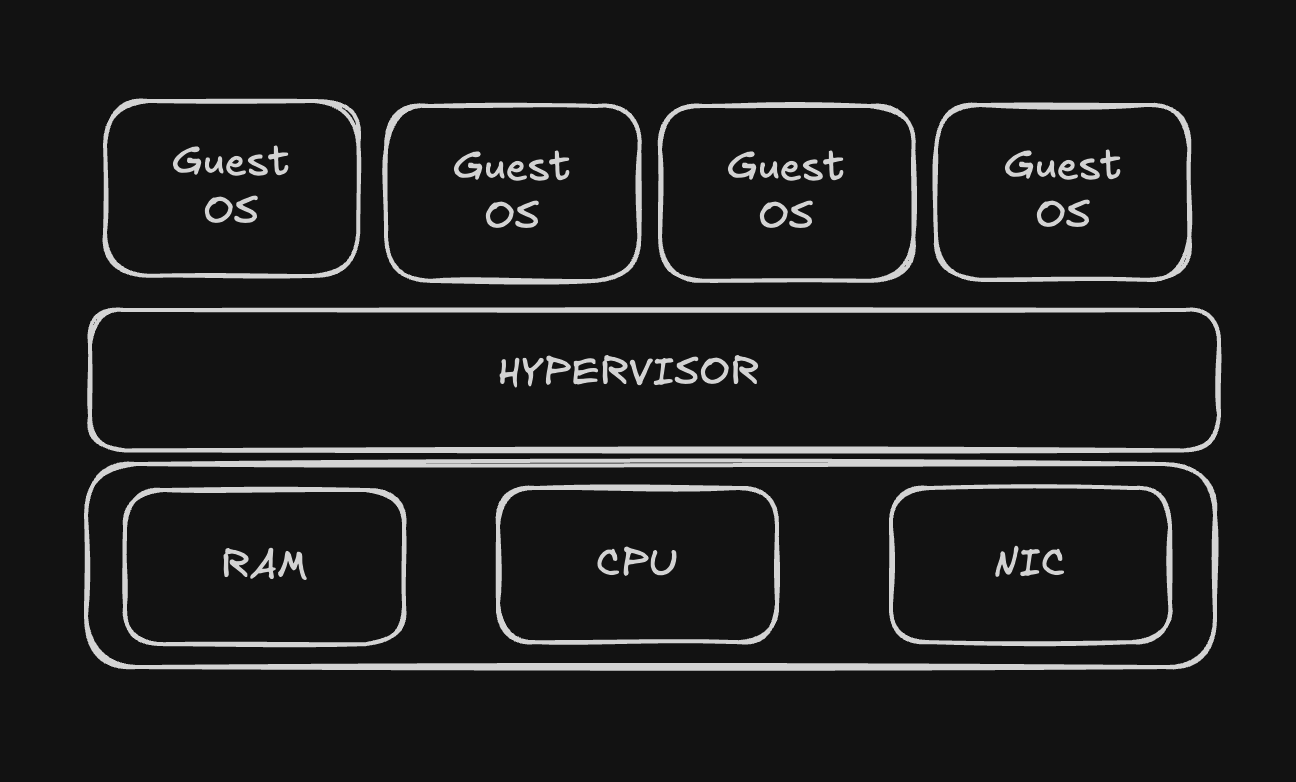
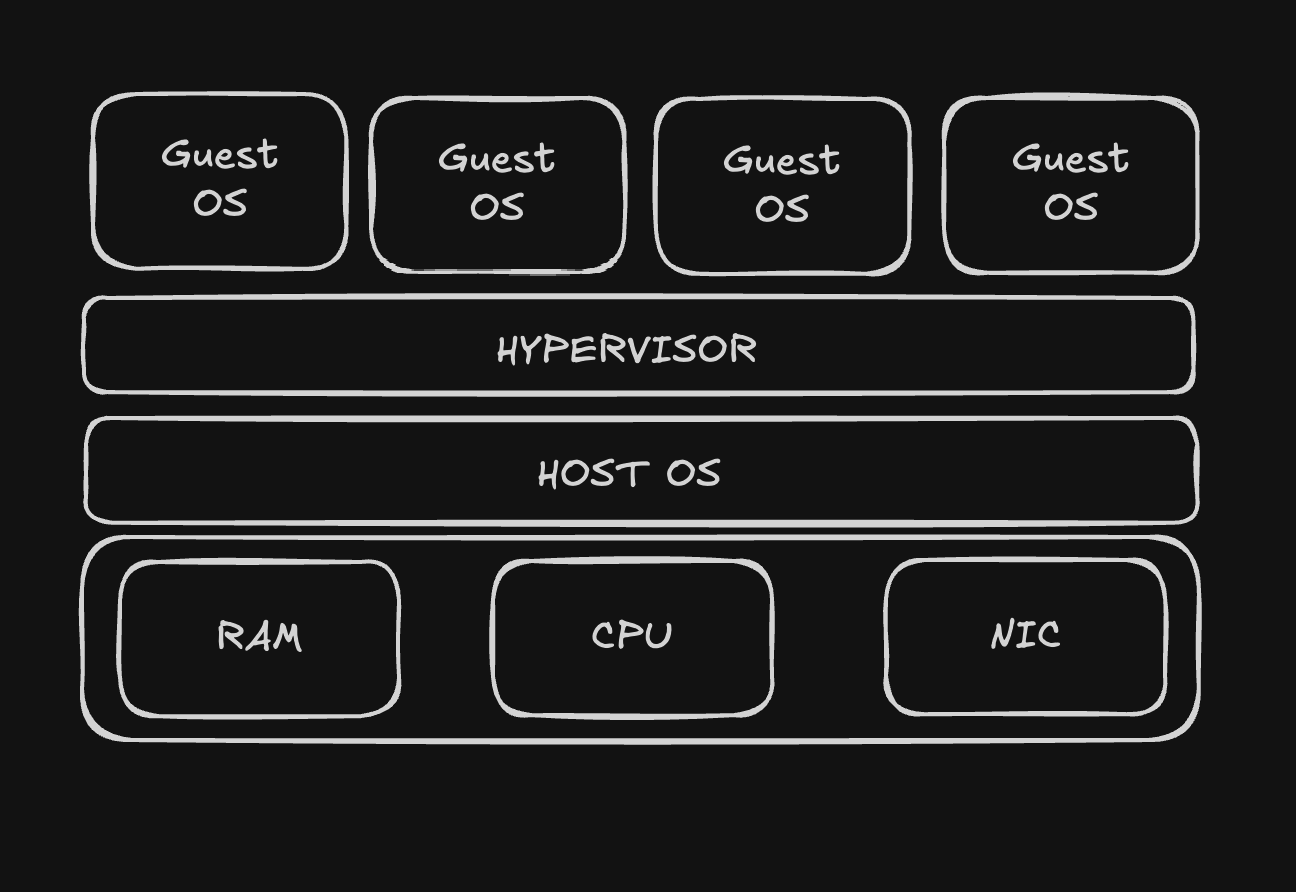
- Installs directly on bare metal (the physical hardware) and is significantly faster than Type 2 hypervisors
- Type 2 Hypervisor: Runs on top of a host operating system, making it easier to set up but less efficient.
Why Do We Use Hypervisors?
- Hypervisors create isolated environments, which makes them ideal for safely studying malware
- You can create snapshots of virtual machines, allowing you to test or break things, then restore them easily
- They're useful for learning new operating systems without needing separate hardware
- You can build entire virtual networks with multiple machines to practice penetration testing
Setting Up a Hypervisor
Enable virtualization in your computer's BIOS.
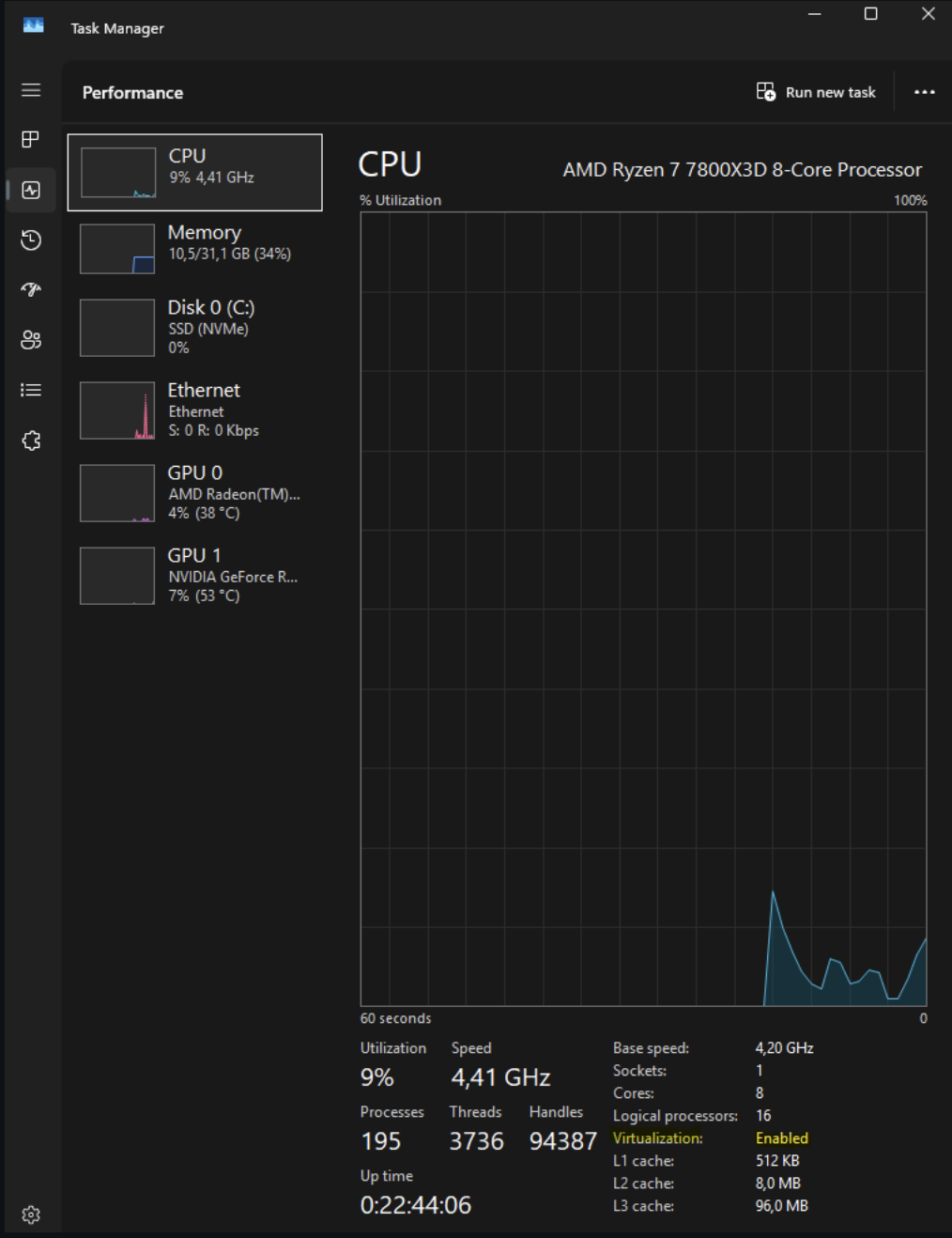
- You can check if virtualization is already enabled by opening Task Manager:
- If it's not enabled, you'll need to access your BIOS settings and enable Intel VT-x or AMD-V, depending on your CPU.
⚠️ Since we recommend using Kali Linux for learning purposes, you can download pre-made virtual machine images from Kali’s official website
Here are some tutorial videos on how to install Kali Linux on each of the hypervisors listed above:
VirtualBox:
HyperV:
VMware:
Exercise
- Install a hypervisor of your choice
- Download the Kali Linux virtual machine image from the official website
- Import the Kali Linux image into your hypervisor
- Start the Kali Linux virtual machine and ensure it runs correctly
If you run into any issues, feel free to ask for help on our Discord server